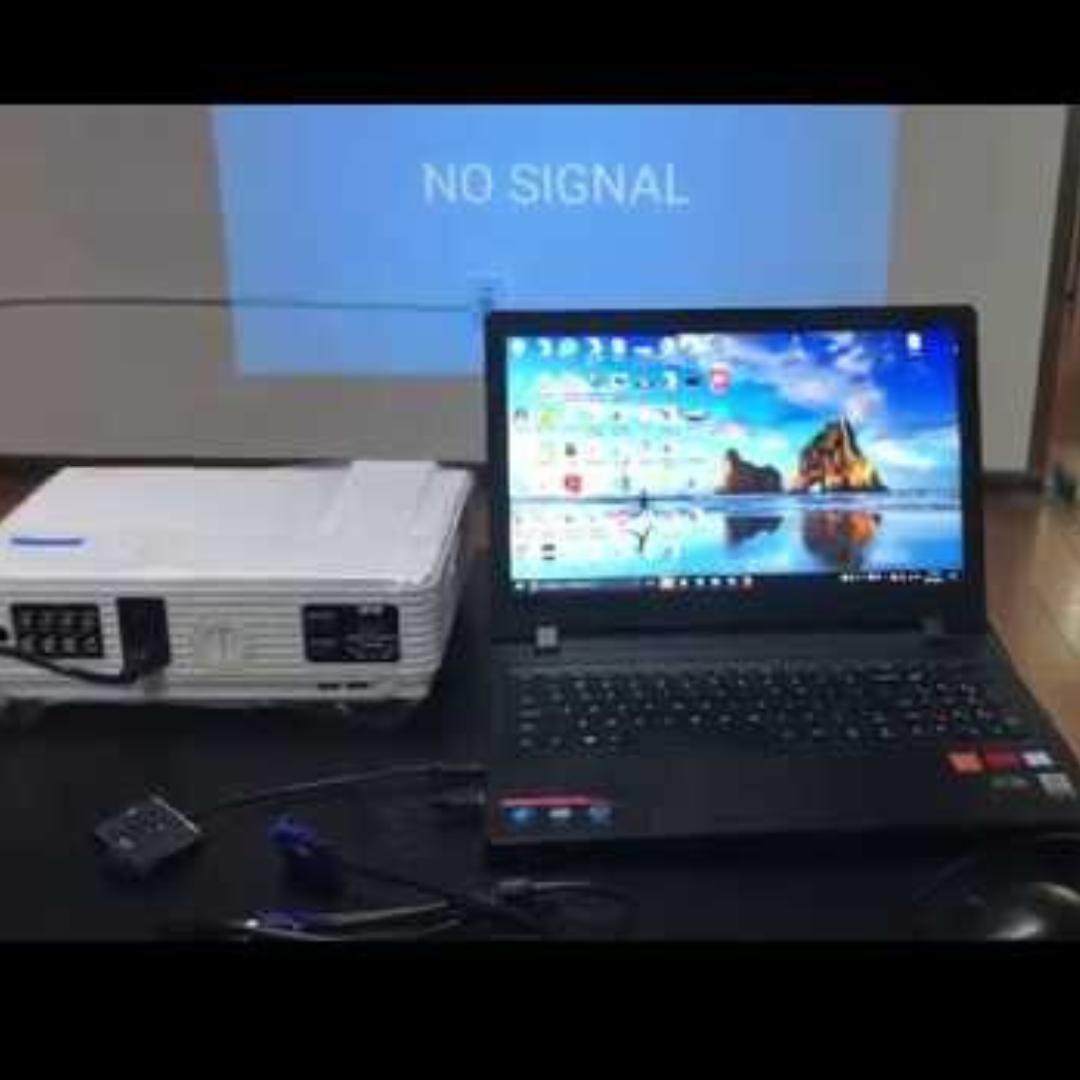
Updated September 1, 2026. A projector that displays No Signal, No Source, or keeps searching for an input is usually telling you it is not receiving a usable video signal from the selected source. Start with source selection, then test a direct connection, a known-good cable, and a supported resolution/refresh rate before changing advanced settings.
Quick answer: select the exact HDMI/input port you are using, make sure the laptop/console/streaming device is actually outputting video, remove docks/switches/receivers temporarily, test a shorter known-good cable, and lower the source to a supported timing. If the projector has a usable picture but is merely blank or black without a No Signal message, use our separate projector connected but not displaying guide.
What “No Signal” means
“No Signal” normally means the projector does not detect a usable input on the selected source. Epson’s support guidance for this message starts with the same fundamentals: turn on the source, check the connection, make sure a laptop is configured for an external display, power-cycle if necessary, and test the HDMI path directly. See Epson’s No Signal troubleshooting guidance.
This is different from a projector that already shows a source image, its own menu, or a blank/black picture for other reasons.
1. Select the correct input source
Use the projector’s Source, Input, or Home control and choose the exact connector you used: HDMI 1, HDMI 2, USB-C video, DisplayPort, VGA, or another supported input. Do not assume the projector automatically switches to HDMI after startup; behavior varies by model.
If the projector offers Source Search, allow it a few seconds to scan, but manually selecting the known port is more useful for diagnosis.
2. Confirm the source device is sending video
Windows
Press Windows + P. Microsoft documents PC screen only, Duplicate, Extend, and Second screen only. If PC screen only is selected, Windows is not sending the desktop to the projector. For troubleshooting, try Duplicate first, then use Extend once the connection is stable. See Microsoft’s projection-mode guidance.
Mac
Open System Settings > Displays and confirm the projector/external display is detected. Apple notes that cable/adapter limits, unsupported resolution or refresh rate, and accessory permission on some Apple-silicon laptops can prevent an external display from showing an image. Apple also recommends bypassing a hub or dock and connecting the display directly to the Mac when diagnosing detection problems. See Apple’s external-display troubleshooting guidance.
USB-C laptops and adapters
A USB-C connector does not automatically mean that port or cable carries video. For a direct USB-C projector connection, verify that the laptop port and projector path support a compatible display mode; when using USB-C-to-HDMI, verify the adapter supports the required resolution and refresh rate. If the projector works when connected directly but fails through a dock, treat the dock, adapter, cable and its power requirements as separate parts of the signal chain rather than assuming the projector is faulty.
3. Remove the middle devices
For diagnosis, connect the source directly to the projector. Temporarily remove:
- USB-C or Thunderbolt docks
- HDMI switches and splitters
- AV receivers
- wall plates and extenders
- capture devices
- long or active HDMI runs
If a direct connection works, add the devices back one at a time. BenQ explicitly recommends a direct source-to-projector test when investigating a no-image HDMI problem. See BenQ’s HDMI troubleshooting guidance.
4. Test a known-good cable and another input
A cable can be physically connected and still fail to carry the required signal reliably. Test a different known-good cable, preferably shorter for diagnosis, and try another compatible projector input if available.
Epson specifically recommends trying a shorter HDMI cable in its No Signal troubleshooting guidance. A successful test with a different cable or port does not automatically prove the old projector port is defective; it simply narrows the problem to that part of the signal path.
5. Lower the resolution and refresh rate
The source can send a format that exceeds the projector, adapter, receiver, or cable path. Check the projector manual’s supported video/timing table rather than assuming every HDMI device accepts every resolution and refresh rate.
For testing, choose a conservative mode that your projector explicitly supports, such as 1920×1080 at 60 Hz where applicable. If the signal appears, increase the settings step by step.
BenQ advises verifying that the input is within the projector’s supported resolution and timing range before moving to deeper HDMI troubleshooting.
6. Check HDMI EDID and HDCP only after the basics
Some projectors expose an HDMI EDID setting such as Standard and Enhanced. BenQ documents this on supported models: a 1080p-only source may need the standard mode, while 4K sources may require the enhanced mode. This is model-specific; do not change an EDID setting unless your projector actually provides it and the manual explains the options.
If you get audio but protected video remains blank, HDCP compatibility can also be relevant. Test a normal desktop or local image first. If that displays correctly but a specific protected app does not, the problem may be content-protection compatibility rather than general signal loss.
7. Power-cycle in the right order
HDMI handshakes can fail after sleep, hot-plugging, or switching devices. Turn off the projector and source, disconnect the problematic path if necessary, reconnect securely, then power the projector and source back on. If a receiver, switch, or dock is required in the final setup, add it back after confirming the direct connection works.
8. Wireless “No Signal” is a different path
If you are using Miracast, AirPlay, Google Cast, or a manufacturer wireless app/dongle, do not troubleshoot it exactly like HDMI. Confirm that the wireless receiver/app is running, both devices are on the expected network where required, and the projector is on the wireless input rather than an HDMI port. For phone-specific setup and protocol differences, use our phone-to-wireless-projector guide.
9. Diagnose intermittent No Signal separately
If the picture appears and then repeatedly drops to No Signal, check cable length/quality, adapters, docks, refresh rate, HDR/color settings, and whether the issue starts only at a particular resolution. Intermittent loss is often more useful diagnostically than a permanent failure because it can reveal a bandwidth or connection-margin problem.
10. When to suspect projector hardware
Hardware becomes more plausible when multiple known-good sources and cables fail on multiple inputs, the projector’s own diagnostics report an input-board error, or physical ports are damaged. Before arranging repair, test another source directly and record the exact projector model, firmware version, input used, cable type/length, and source device.
For shared meeting rooms, repeated signal failures are also a procurement signal: standardize known-good adapters and cables, document supported laptop connection paths, and favor hardware that matches the room’s actual devices and support model. If you are replacing the projector rather than troubleshooting one incident, use Brandligo’s business projector procurement guide.
Meeting-room support checklist
For shared conference rooms, document the supported laptop-to-projector path instead of troubleshooting from scratch every time. Keep at least one known-good HDMI cable and approved USB-C adapter available, label the correct projector input, record the room’s normal resolution/refresh rate, and note any dock, switcher, receiver, extender or control-system dependency.
If failures recur only with one adapter family, one wall plate, one dock, or one source device, treat that component as the next isolation target before replacing the projector. For IT and procurement teams, repeated signal incidents are a useful indicator that the room may need standardized adapters, shorter signal paths, better documentation, or different presentation hardware.
No Signal vs blank/black screen
Use this guide when the projector explicitly says No Signal, No Source, or searches for an input. Use our connected-but-not-displaying guide when the projector appears to have a connection but the resulting image is black, blank, missing, or on the wrong desktop.
If you are presenting and need to intentionally hold or hide the image, see our Freeze vs Blank vs Pause guide.
Fast troubleshooting order
- Select the exact projector input.
- Make sure the source device is outputting to the projector.
- Connect the source directly to the projector.
- Test a known-good, shorter cable.
- Try another compatible input.
- Lower to a supported resolution/refresh rate.
- Then inspect EDID/HDCP or model-specific settings.
- Escalate to support only after isolating source, cable and input variables.
FAQ
Why does my projector say No Signal with HDMI connected?
The selected source may be wrong, the source device may not be outputting video, the cable/adapter path may be failing, or the source may be sending a timing the projector cannot accept. Test the exact HDMI input, a direct connection and a known-good cable first.
Can an HDMI cable cause No Signal?
Yes. A damaged, marginal, excessively long, or bandwidth-limited cable can fail even though it is physically plugged in. Testing a shorter known-good cable is a useful isolation step.
Why does No Signal appear only at 4K?
The projector or something in the path may support 1080p but not the selected 4K refresh rate, color format, HDR mode, or bandwidth. Check the timing table and the capabilities of every device in the chain.
Should I reset the projector?
Not first. Source selection, direct connection, cable testing and supported timing are lower-risk diagnostic steps. Use a factory reset only when the manufacturer recommends it and you understand that saved picture, network and installation settings may be lost.
Brandligo has not independently tested every projector, HDMI cable, adapter, dock, source device, or firmware combination. Use current manufacturer documentation for model-specific input, EDID, HDCP, supported-timing and service guidance.


Leave a Reply