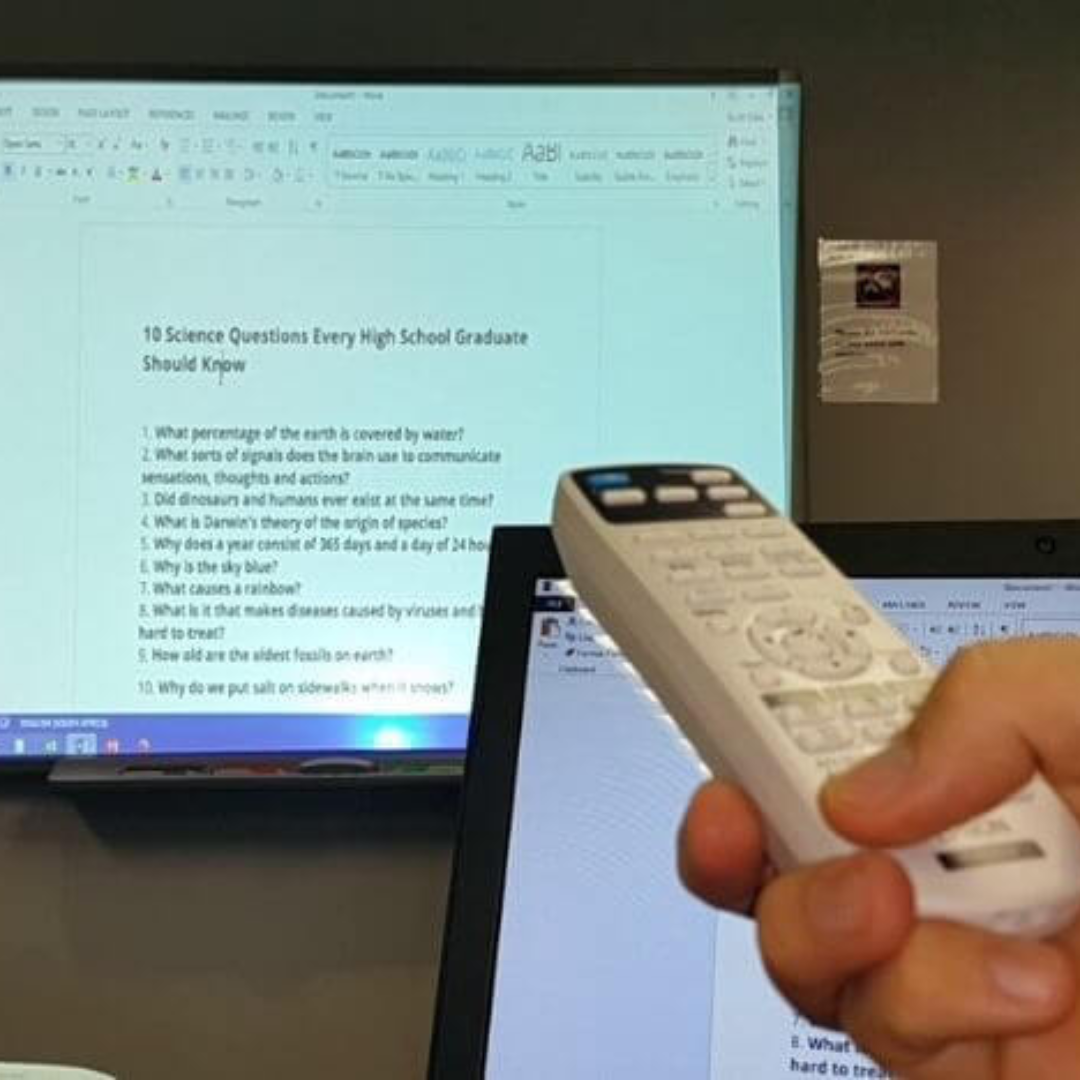
Updated September 1, 2026. If you need to hold one image on a projector while you change files, check notes, or prepare the next slide, use the projector’s Freeze function if your model supports it. But Freeze is not the same as pausing your laptop, video, or presentation source: on many projectors, the source keeps running while the audience continues seeing the frozen frame.
Quick answer: press the projector remote’s Freeze or Still button to hold the current projected frame, then press it again (or follow the model’s on-screen instructions) to return to the live source. If you want to hide the picture instead, use Blank, A/V Mute, or a similar function. If you need playback to stop at the same point, pause the source device or app as well.
Freeze, Blank and Pause are different
The most important distinction is what happens behind the projected image. Epson’s projector documentation explains that when Freeze is active, the displayed image can remain still while the source continues playing. That means you can change files on a connected computer without immediately showing those changes, but a video or presentation timeline may continue in the background. Epson’s Freeze and A/V Mute documentation describes this behavior directly.
| Function | What the audience sees | What usually happens to the source | Best use |
|---|---|---|---|
| Freeze / Still | One held frame | Source may continue running | Changing files, checking notes, holding a diagram |
| Blank | Hidden image, often black/blue/logo depending on model | Source usually continues; audio behavior varies | Temporarily hiding the picture |
| A/V Mute | Projected picture hidden | Source continues; projector-routed audio may also be muted on supported models | Hiding both presentation output and projector audio when the model supports it |
| Pause in the source app | Whatever the app currently displays | Playback/timeline actually pauses | Stopping a video or animation at an exact point |
| Extend desktop | Only the content placed on the projector display | Your private desktop can stay on the laptop | Presentations where privacy matters |
How to freeze a projector screen
- Confirm that your projector has a Freeze or Still function. Check the remote, control panel, on-screen menu, or the exact model’s manual. Do not assume every projector has it.
- Display the frame you want the audience to keep seeing. This could be a slide, chart, agenda or static image.
- Press Freeze or Still. The current projected frame should remain on screen.
- Make your off-screen change carefully. Open the next file, adjust your presentation, or prepare another source. Remember that Freeze is not a security boundary: behavior varies by projector, signal path and control system.
- Unfreeze only when the live source is ready. Press Freeze again or use the model-specific cancel action.
BenQ projector documentation also distinguishes Freeze from Blank: a frozen picture can remain visible while connected video continues, while Blank hides the projected picture. The exact labels and whether audio continues differ by model, so the projector manual should override generic advice.
The privacy mistake to avoid during a presentation
Do not treat Freeze as a guaranteed way to keep private information off the projector. If the projector leaves Freeze unexpectedly, another person presses a control, the signal reconnects, or the model behaves differently from what you expect, the live source can become visible.
For business presentations, a better workflow is to separate the audience display from your private desktop. On Windows 11, press Windows + P and choose Extend when appropriate. Microsoft documents that Extend spreads the desktop across multiple displays, allowing you to keep different windows on each screen. Microsoft’s display-mode guidance explains PC screen only, Duplicate, Extend and Second screen only.
On macOS, use Displays settings to choose whether the external display mirrors or extends the Mac desktop. Apple also documents that an extended desktop lets different content appear on each display. Apple’s external-display guidance covers mirroring and extending.
How to freeze a projector screen from a laptop
If the projector itself has a Freeze button, you normally do not need a special laptop shortcut: the projector holds the incoming frame. If your projector does not support Freeze, use the presentation or media app on the laptop to pause the source, or use an extended desktop so the audience sees only the presentation window.
Important: Windows + P does not freeze a projector image. It opens Windows display-mode choices. That distinction matters because some third-party guides incorrectly describe it as a freeze shortcut.
How to freeze a projector screen without the remote
First check the projector’s physical control panel or web/network control interface, if the manufacturer provides one. Some installations route projector functions through a classroom or conference-room control panel. A laptop cannot universally trigger the projector’s own Freeze command just because it is connected; unless the manufacturer or room-control system exposes that function, pause or hide content at the source instead of assuming a keyboard shortcut or universal remote will reproduce a proprietary Freeze control.
If the projector is connected but shows no picture at all, that is a different problem. Use Brandligo’s projector connected but not displaying guide or the projector no-signal troubleshooting guide rather than repeatedly pressing Freeze.
Freeze vs A/V Mute or Blank
Use Freeze when the audience should keep looking at the current frame. Use Blank/A/V Mute when you want attention away from the projected content or need to hide the display temporarily. Epson notes that its A/V Mute can hide the picture while the source continues, and some models can display black, blue or a logo. ViewSonic likewise documents Blank Timer on certain business projectors as a presentation tool for temporarily hiding the image.
Audio behavior is model-dependent. Some projectors continue audio during Freeze; some mute audio with a blanking function; other systems route audio separately. Verify the exact model before relying on a projector control during a live event.
When this feature matters for business buyers
Freeze, Blank/A/V Mute, source switching, network control and reliable laptop connectivity are small features until a projector is used in a meeting room, classroom or training space every day. If you are choosing hardware rather than troubleshooting an existing unit, Brandligo’s business projector buying guide compares the broader procurement factors that matter alongside presentation controls.
Frequently asked questions
Does Freeze pause PowerPoint or a video?
Not necessarily. A projector’s Freeze function can hold the displayed frame while the source device continues. Pause the source application too if you need playback to resume from the same moment.
Can I change files while the projector is frozen?
Some projectors are specifically designed to let you keep a frozen frame visible while you change files on the source computer. However, use an extended-desktop workflow when confidential information could be exposed; it is safer than relying on Freeze alone.
Will leaving a frozen image damage the projector?
Freeze is a normal projector feature on models that support it, but Brandligo does not make a universal burn-in or image-retention claim across every display technology and model. Follow the manufacturer’s operating guidance and avoid leaving static content displayed unnecessarily for long periods.
Is Freeze the same as turning the projector off?
No. Freeze keeps the projector operating and holds a frame; powering the projector off ends projection and follows the unit’s shutdown process.
Bottom line
Use Freeze to hold a frame, Blank/A/V Mute to hide the projected picture, and Pause on the source when you need the content itself to stop. For presentations involving private files, use an extended desktop where possible instead of treating projector Freeze as a privacy feature.
Brandligo has not independently tested Freeze behavior on every projector. The guidance above is based on documented projector and operating-system behavior; always check the manual for your exact model.


Leave a Reply