About Microsoft Whiteboard
Microsoft Whiteboard is the freeform visual collaboration application in the Microsoft 365 family. It gives teams, classrooms and meeting participants a shared digital canvas for brainstorming, planning, workshops, teaching and problem solving. Whiteboard supports pen, touch and keyboard input and can be used in a browser, Microsoft Teams, Windows, iOS, Android and supported shared-room devices. New whiteboards are generally stored in the creator's OneDrive, which makes Whiteboard part of the wider Microsoft 365 identity, storage and governance model rather than a standalone drawing app.
What it does
Collaboration
| Real-time canvas | Multiple participants can collaborate on a shared freeform canvas across supported Whiteboard and Microsoft Teams experiences. |
|---|
Templates
| Built-in and custom templates | Whiteboard includes templates for brainstorming, planning, retrospectives, workshops and other scenarios, with support for saving custom templates. |
|---|
Microsoft 365
| Teams and Loop integration | Whiteboard integrates with Microsoft Teams and supports Loop components in eligible work or school environments. |
|---|
Storage
| OneDrive-backed boards | OneDrive is the default storage location for new Whiteboards, with some older or device-specific boards still stored in Azure. |
|---|
AI
| Copilot | Eligible users can use Copilot features such as summarizing ideas, subject to Microsoft 365 and Copilot licensing. |
|---|
What is Microsoft Whiteboard used for?
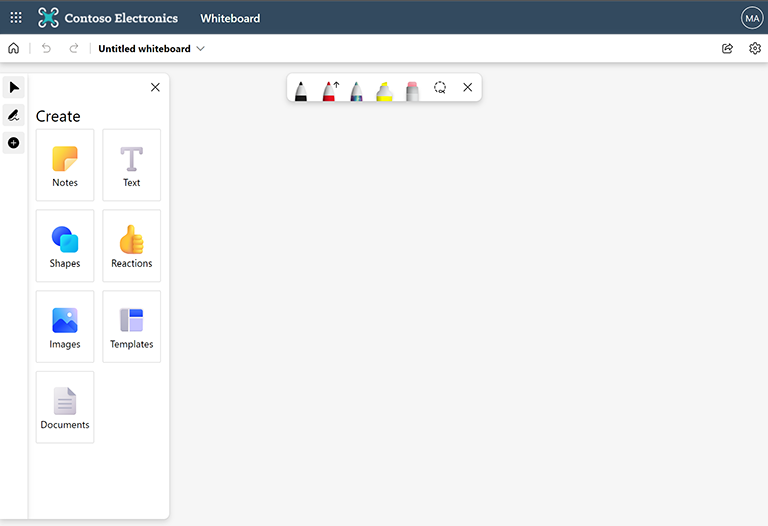
Whiteboard is designed for work that benefits from a flexible visual canvas instead of a fixed document structure. Common uses include brainstorming, sprint planning, project planning, retrospectives, workshops, strategy sessions, classroom activities, incident reviews and problem solving. People can add sticky notes, text, ink, shapes and other visual elements while several participants work on the same canvas.
The product is strongest during collaborative sessions where ideas need to be captured and reorganized quickly. It is less suitable for final reports, structured databases or project schedules that require dependencies and formal reporting. Word, Lists, Planner or another specialist application may be a better destination once exploratory work becomes structured operational work.
How does real-time collaboration work in Whiteboard?
Microsoft positions Whiteboard as a real-time collaboration canvas. Participants can work on the same board from supported devices and Microsoft Teams experiences, which makes it useful for hybrid meetings where some people are in a room and others join remotely. Teams meetings can open existing whiteboards so a group can prepare a board before a session and continue using it later.
Whiteboard also includes facilitation controls for supported scenarios. Microsoft documents a Follow feature that lets participants follow the presenter's view as the presenter moves around the canvas. Boards started in certain Teams scenarios can also be placed in read-only mode when the owner wants participants to stop editing. These controls help a facilitator move between open collaboration and guided presentation.
What templates and visual planning tools are available?
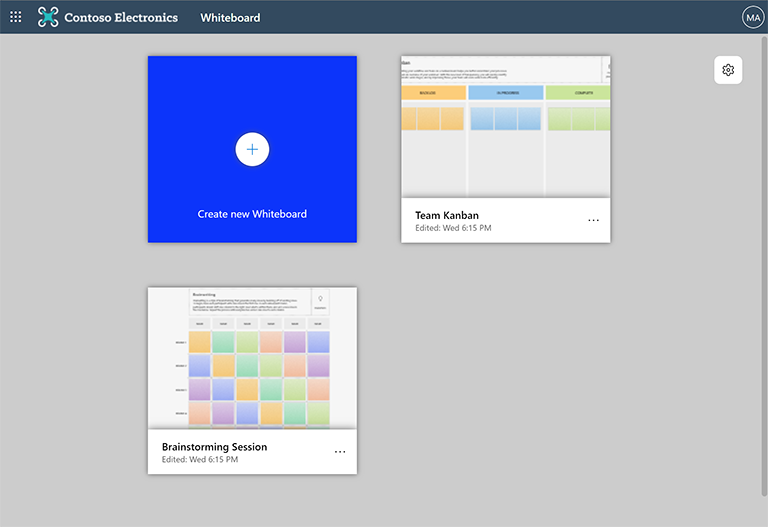
Microsoft provides Whiteboard templates for common collaboration patterns. Current template categories include brainstorming, problem solving, design and research, strategy, project planning, retrospectives, workshops, games and learning. These templates give teams a structured starting point without turning the canvas into a rigid application.
Microsoft also supports saving custom templates for repeatable internal workshops and planning sessions. Custom templates are stored through OneDrive and can be shared with colleagues. This is useful for teams that run the same retrospective, discovery workshop or planning exercise repeatedly, but organizations should still manage ownership so important templates do not disappear when the original creator leaves.
How do Loop components work in Microsoft Whiteboard?
Whiteboard can host Microsoft Loop components in supported work or school environments. Microsoft currently supports components such as task lists, tables, voting tables, progress trackers and checklists. The same Loop component can be copied to supported Microsoft 365 applications such as Teams or Outlook, and edits remain synchronized across the places where the component appears.
This helps a brainstorming session turn into shared follow-up without manually recreating every list. Microsoft also supports pasting certain Microsoft Forms polls into Whiteboard as Loop components. Availability is not identical on every device or cloud environment, so organizations should confirm platform and tenant support before making Loop components a required part of a workshop process.
Where is Whiteboard data stored and what should administrators know?
Microsoft says OneDrive is the default storage location for new whiteboards. A whiteboard is created in the OneDrive of the person who starts it, which means OneDrive provisioning, ownership and account lifecycle matter for business use. Microsoft also documents some older or device-specific whiteboards that remain in Azure storage, including certain Surface Hub and Microsoft Teams Rooms scenarios.
OneDrive-stored Whiteboard files can use familiar Microsoft 365 controls such as retention, quota, legal hold, data loss prevention and basic eDiscovery. This is useful for governance, but it also means a whiteboard should not be treated as an anonymous meeting surface. Organizations should understand who owns the board, how long it must be retained, and what happens to it when the owner's account is removed.
What can Copilot do in Microsoft Whiteboard?
Microsoft documents Copilot features in Whiteboard for eligible users. One current capability can summarize ideas from a board and place the result back onto the canvas as a Loop component. This can help a team turn a dense collection of sticky notes into a more readable set of themes or follow-up points.
Copilot is not included for every Whiteboard user. Microsoft states that an eligible Microsoft 365 subscription and, for some capabilities, a Microsoft Copilot license are required. Buyers should verify the exact tenant, user license and supported client before treating AI-assisted summarization as part of the standard Whiteboard experience.
What are Microsoft Whiteboard's main limitations?
Whiteboard is intentionally flexible, and that can become a weakness when teams try to use it as a permanent system of record. Large boards can become difficult to navigate, and freeform sticky notes do not provide the same field structure, workflow controls or reporting available in Lists, Planner or dedicated project tools. Important decisions and tasks should usually be transferred into a more durable system after a workshop.
Platform differences also matter. Loop component creation and some collaboration functions are not identical across web, desktop, mobile and shared-room devices. External collaboration can depend on how the board was created and the Microsoft Teams context. Organizations with strict guest access, compliance or shared-device requirements should test the exact scenario instead of assuming every Whiteboard client behaves the same way.
Who should choose something else?
Teams that need formal task tracking, dependencies, workload views or project reporting should use Planner or another project-management platform rather than Whiteboard alone. Organizations that need structured records, forms and automation should consider Microsoft Lists or Power Platform tools. Designers who need detailed diagramming, wireframing or specialist visual notation may prefer a dedicated design or diagramming application.
Microsoft Whiteboard is a stronger fit when the main need is shared visual thinking: brainstorming, workshops, teaching, meeting facilitation and collaborative planning inside a Microsoft 365 environment. The best choice depends on whether the output is exploratory visual work or a structured process that needs long-term governance and reporting.
Reviews
No reviews yet
Nobody has reviewed Microsoft Whiteboard here yet.