About Microsoft Lists
Microsoft Lists is the structured information-tracking application in the Microsoft 365 family. It is designed for teams that need more control than a simple task list but do not need a full database or custom line-of-business system. Users can create lists from scratch, templates, Excel, CSV or existing lists, then organize information with columns, views, forms, permissions, rules and integrations. Lists can be used directly from the Microsoft 365 Lists app and also through SharePoint and Teams, which makes it especially useful for organizations already standardizing on Microsoft 365 collaboration and identity.
What it does
Information tracking
| Structured lists | Track business records using configurable columns, forms, views, permissions and list items. |
|---|
Creation
| Templates and imports | Create lists from Microsoft templates, blank lists, existing lists, Excel files or CSV files. |
|---|
Automation
| Rules and Power Automate | Use built-in rules for simple notifications and connect supported list workflows to Power Automate. |
|---|
Extensibility
| Power Apps integration | Microsoft Lists data can be used with Power Apps for customized forms and business applications. |
|---|
Microsoft 365
| SharePoint and Teams | Lists can be created and used through the Lists app, SharePoint and supported Teams experiences. |
|---|
Scale
| List view threshold | SharePoint Online uses a 5,000-item list view threshold for operations that process large item sets, so large lists need planned views and indexing. |
|---|
What is Microsoft Lists used for?
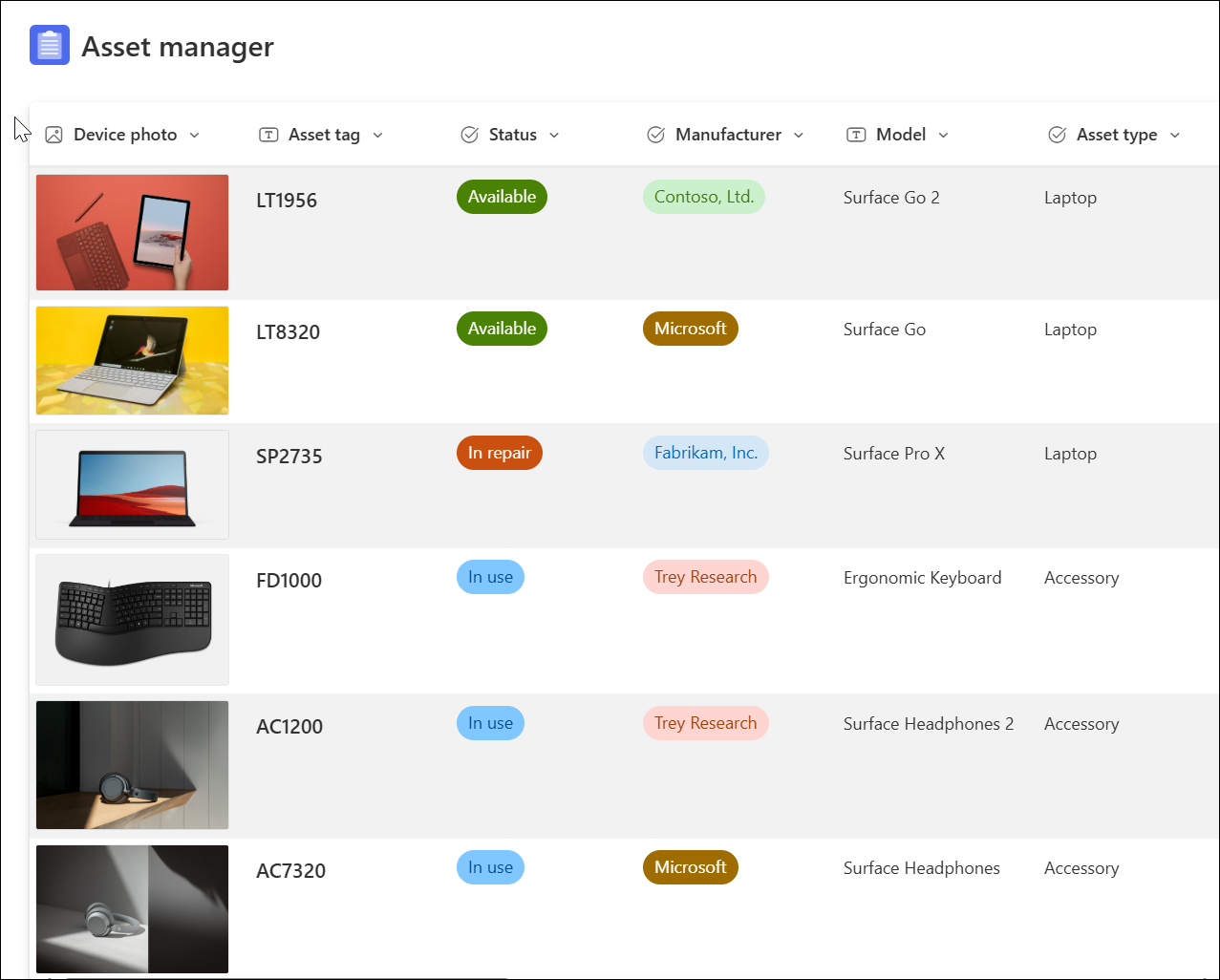
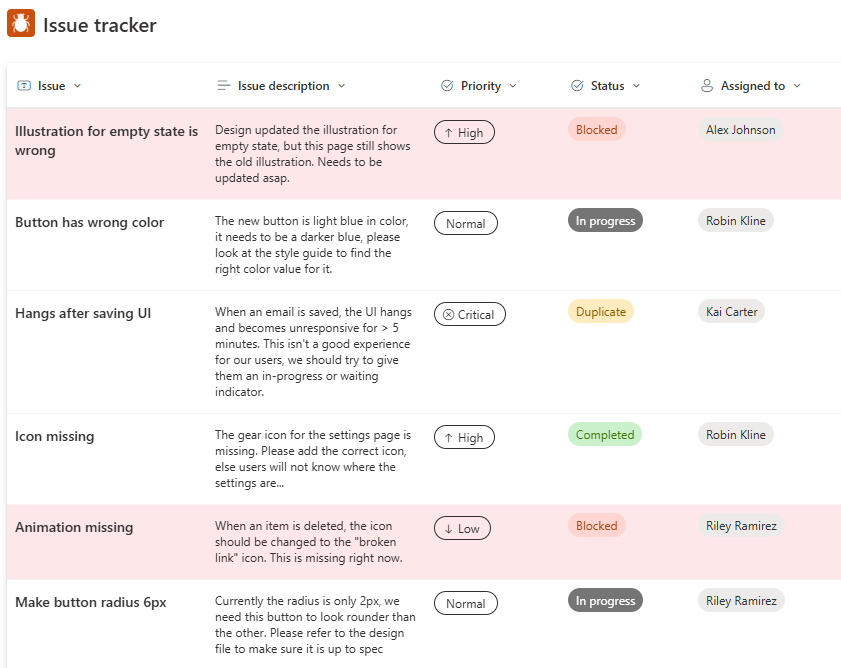
Microsoft Lists is used to track structured business information such as issues, assets, inventory, contacts, routines, requests, incidents and lightweight project work. Microsoft documents lists as flexible tools for storing several data types, including text, dates and files, and for organizing that information through custom views and metadata.
A list can start as a blank structure or from a Microsoft template. Teams can also create a list from Excel, CSV or an existing list. This makes Lists useful when a process currently lives in a spreadsheet but needs shared access, clearer fields, item-level forms, permissions or simple workflow rules. It is less suitable when the data model requires complex relational logic, heavy transactional processing or database-scale application behavior.
How do templates, columns and views work in Microsoft Lists?
Microsoft provides templates for common scenarios such as issue tracking, work tracking, asset management, contacts and other repeatable business needs. Templates include preconfigured columns and layouts, and some include automation that can be completed after the list is created. Users can then change columns, formatting and views to match the process they actually need.
Views are important because the same list can present different slices of the same underlying data. A team might keep one view for open issues, another for high-priority items and another for records assigned to a specific group. This is more structured than a simple shared spreadsheet, but the design still depends on clear field definitions and ownership. Poorly planned columns and too many ad hoc views can make a list harder to maintain.
How do rules and automation work?
Microsoft Lists supports built-in rules for simple automation. Microsoft documents rule triggers such as an item changing or a date approaching, with actions such as sending notifications. Rules are useful for lightweight workflows where a team needs reminders or change notifications without building a separate automation project.
For more advanced workflows, Microsoft Lists can integrate with Power Automate. Microsoft also documents Power Apps integration for creating custom applications or customized forms that use list data. These options can extend a list significantly, but they also increase implementation and support complexity. Organizations should decide whether a process still belongs in Lists or has grown into a custom business application that needs stronger lifecycle management and testing.
How does Microsoft Lists relate to SharePoint and Teams?
Lists is closely connected to SharePoint. Microsoft Support allows lists to be created from the Lists app, SharePoint and Teams, and many list capabilities use SharePoint infrastructure underneath. A list created for a team can therefore participate in the same Microsoft 365 permission, site and collaboration model that supports other SharePoint content.
Teams can surface lists inside team collaboration so users can work with tracked information without leaving the channel context. This is useful for issue tracking, onboarding, asset registers and other operational records that a team discusses regularly. The relationship also means governance should consider SharePoint site ownership, permissions, retention and lifecycle rather than treating Microsoft Lists as a completely separate data service.
What should buyers know about scale and list view limits?
Microsoft Lists can hold substantial amounts of information, but buyers should understand SharePoint list behavior before treating it like an unrestricted database. Microsoft documentation and support guidance continue to describe a 5,000-item list view threshold for operations that require processing large numbers of items at once. Large lists can still be used, but views, indexes and filtering need to be designed carefully so routine operations do not hit throttling behavior.
This is an important migration consideration for teams moving large spreadsheets into Lists. A workbook with thousands of rows may import successfully, but the resulting list should be designed around useful indexed columns and filtered views instead of expecting every user to work with the entire data set in one unfiltered view. Workloads with very large relational data sets, heavy reporting or transactional requirements may be better served by Dataverse, SQL or another database-backed platform.
What are Microsoft Lists' main limitations?
Lists is flexible, but that flexibility can lead teams to build business-critical processes without enough governance. A list can accumulate too many columns, views, unique permissions, custom forms and automation flows, making maintenance difficult for the next administrator. Organizations should document list owners, important fields, automation dependencies, retention requirements and who is allowed to change the structure.
Lists also does not replace every specialized application. It can track records and simple workflows, but complex CRM, service management, ERP, portfolio management or regulated records processes may require dedicated products. Power Apps and Power Automate can close some gaps, but once a solution depends on substantial custom logic, testing and support become as important as the original list design.
Who should choose something else?
Teams that only need personal reminders or simple individual task lists should usually choose Microsoft To Do. Teams that need shared task boards, dependencies, milestones, workload views or project controls should compare Microsoft Planner. Organizations that need formal intranet publishing and document libraries should use SharePoint more directly rather than forcing all content into Lists.
Microsoft Lists is a stronger fit when the main problem is structured information tracking: rows of business records, clearly defined fields, useful views, controlled sharing and lightweight automation. It works best for organizations already using Microsoft 365 that want to replace unmanaged spreadsheets or email-based trackers without immediately building a full custom application.
Reviews
No reviews yet
Nobody has reviewed Microsoft Lists here yet.