About Microsoft Clipchamp
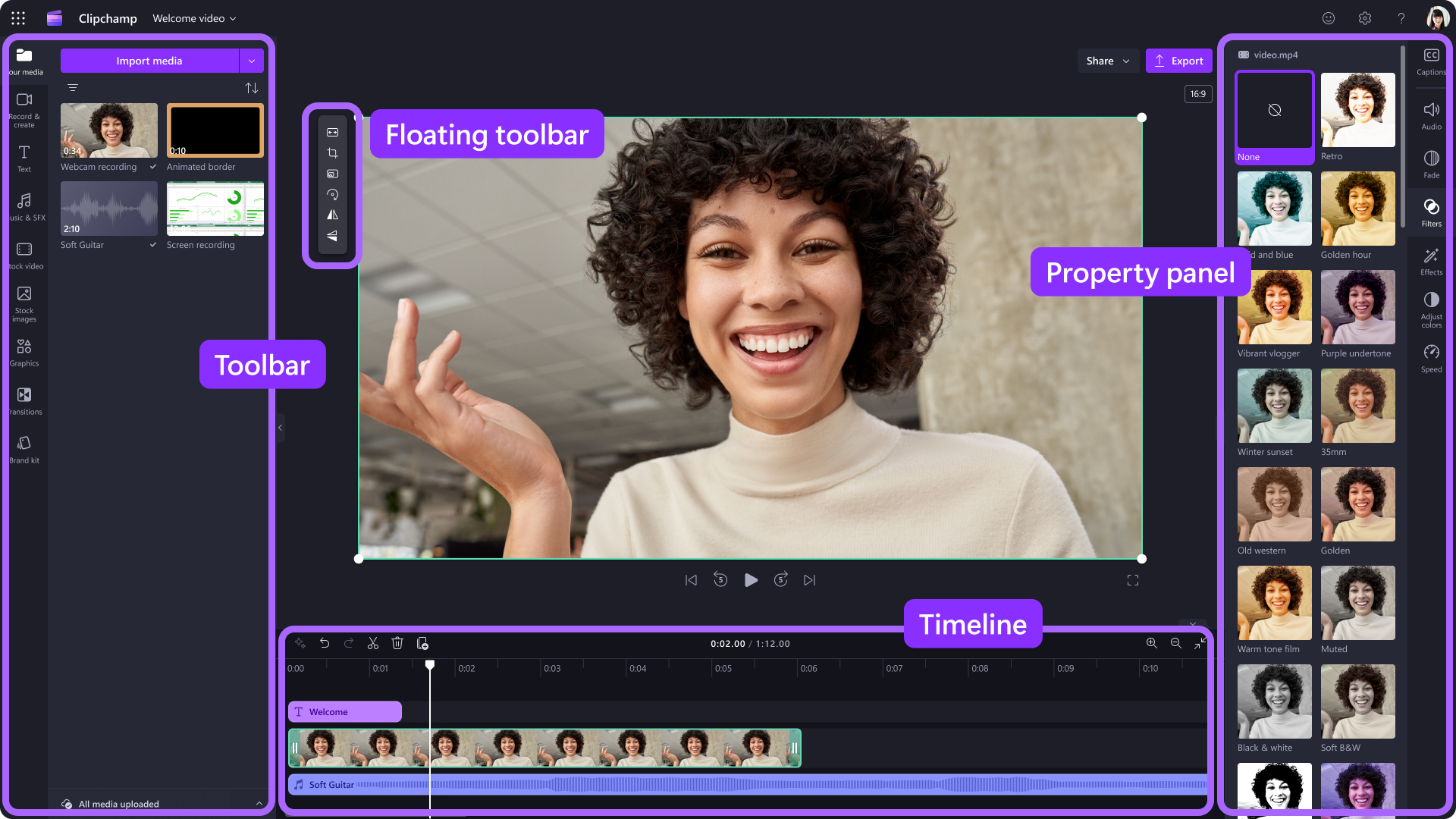
Microsoft Clipchamp is Microsoft's unified video creation, recording, playback and management experience in Microsoft 365. For work and school accounts, Clipchamp combines browser-based video editing with camera and screen recording, the Microsoft 365 video homepage and the video player experience that Microsoft previously branded as Stream. Video files and projects can work with OneDrive and SharePoint, while availability depends on account type, Microsoft 365 plan, administrator settings and whether the user needs Standard or Premium editing features.
What it does
Editing
| Timeline video editor | Import, trim, split and combine video clips and add text, transitions, overlays, audio and other supported editing elements. |
|---|
Recording
| Screen and camera recording | Create screen, webcam or combined recordings in supported Clipchamp work and school experiences. |
|---|
Playback
| Microsoft 365 video player | The video player supports transcripts, captions, chapters, comments, thumbnails and other Microsoft 365 video features. |
|---|
Storage
| OneDrive and SharePoint | Work and school video files and projects use Microsoft 365 storage such as OneDrive and SharePoint in supported scenarios. |
|---|
Microsoft 365
| Unified former Stream capabilities | Microsoft has unified the video player, recorder and homepage previously branded Stream under the Clipchamp brand. |
|---|
Licensing
| Standard and Premium plans | Clipchamp Standard is included in selected Microsoft 365 and Office 365 plans, while Premium and standalone business options are available in supported markets. |
|---|
What is Microsoft Clipchamp used for?
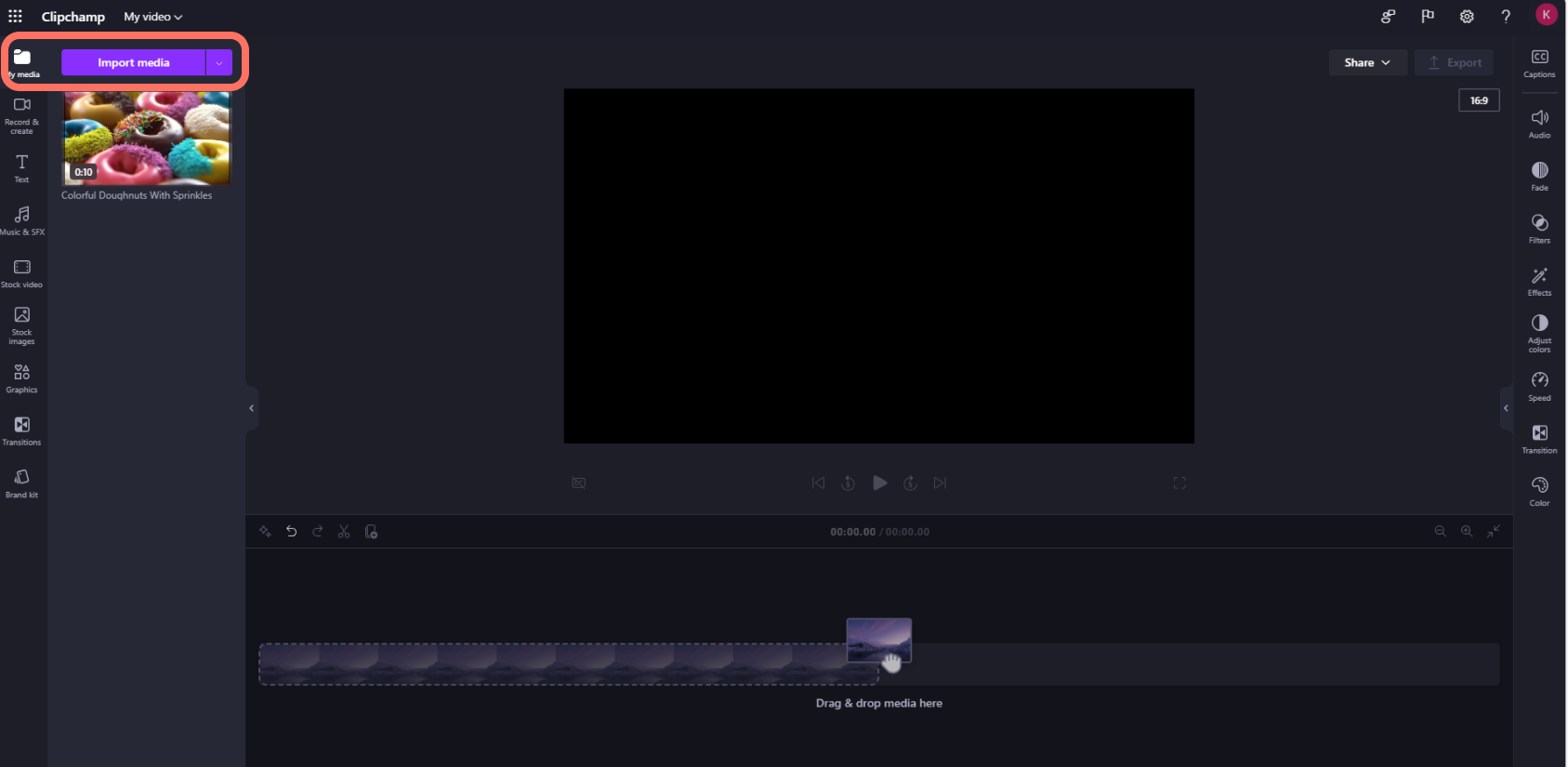
Clipchamp is used to create and edit business videos without requiring a traditional desktop editing suite. Microsoft documents common tasks such as importing clips, trimming and joining media on a timeline, adding transitions, text, annotations, overlays and music, recording a screen or webcam, and exporting finished videos. Work and school users can access Clipchamp through supported Microsoft 365 entry points and, where enabled, through the Windows desktop app.
The product now covers more than editing. Microsoft has unified the video player, camera, recorder and video homepage that were previously associated with Stream under the Clipchamp brand. That makes Clipchamp the current Microsoft 365 video destination for both creation and consumption, while the underlying files continue to use Microsoft 365 storage and sharing.
How did Microsoft Stream become part of Clipchamp?
Microsoft Support now states that the Microsoft 365 video capabilities previously available under the Stream and Clipchamp brands have been unified under the Clipchamp brand. The old Stream Classic service was retired in 2024, and the newer SharePoint-based video experience progressively moved toward the same Microsoft 365 storage model used for other files.
For buyers, this means Microsoft Stream should not be treated as a separate new standalone video product in the current catalogue. The current Clipchamp experience includes the video player, recorder and homepage functions that used to carry Stream branding. Existing references to Stream on SharePoint can still appear in older documentation and administration language, so migration teams should verify whether a document refers to retired Stream Classic, the SharePoint-based video layer or the newer Clipchamp branding.
What video editing features does Clipchamp provide?
Clipchamp's editor supports timeline-based editing for common business video work. Microsoft documents trimming, splitting and joining clips, adding text, transitions, filters, overlays and audio, and recording camera or screen content. The work version is designed to make basic and intermediate editing accessible inside a browser, which can be useful for training videos, demos, social clips, internal communications and instructional content.
It is not a replacement for every professional editing suite. Teams that need complex multicamera workflows, advanced color work, specialist audio mixing, broadcast finishing or large media pipelines may still need dedicated professional software. Clipchamp is stronger when the priority is fast, approachable editing inside an existing Microsoft 365 environment.
How do the video player, transcripts and chapters work?
The Microsoft 365 video player now sits under the Clipchamp brand. Microsoft documents transcript and closed-caption generation for supported videos stored in SharePoint, Teams or OneDrive, transcript search, chapter navigation, comments, custom thumbnails, titles and descriptions. Owners can also share a video from a specific time code and use the player to manage video settings.
These features are useful for meeting recordings, training content and internal communications because viewers can search or read a transcript instead of watching every minute. Chapters also make longer recordings easier to navigate. Automatic transcripts should still be reviewed when accuracy matters because speech recognition can mishear names, technical terms or poor-quality audio.
Where are Clipchamp projects and videos stored?
For work and school accounts, Microsoft documents OneDrive and SharePoint as important storage locations for Clipchamp projects and video files. Video files can be managed like other Microsoft 365 files, and editing projects can use Microsoft 365 storage for collaboration. The video player can open content stored in OneDrive or SharePoint, and Teams meeting recordings also participate in the wider Microsoft 365 video experience.
This storage model simplifies governance for organizations already using Microsoft 365, but it also creates ownership questions. Teams should define where finished videos belong, whether a project should stay in one person's OneDrive or move to a team-owned SharePoint location, and how retention, external sharing and offboarding should work.
Which Microsoft 365 plans include Clipchamp?
Microsoft's current support material says Clipchamp Standard for work and school accounts is included in several Microsoft 365 and Office 365 business and education plans, including Microsoft 365 E3, E5, Business Standard and Business Premium in supported environments. Microsoft also offers Premium features and standalone business subscriptions in some scenarios.
Plan availability is not identical across commercial, education and government environments, and Microsoft continues to change packaging. Buyers should verify the exact license assigned to users before promising access to the editor or premium features. There is no single Clipchamp price that accurately describes every Microsoft 365 deployment because Standard may already be included while Premium or standalone access can be purchased separately.
How does Clipchamp work with other Microsoft 365 apps?
Clipchamp is closely connected with SharePoint, OneDrive and Microsoft 365 collaboration surfaces. Videos can be uploaded or stored in OneDrive and SharePoint, shared through Teams and Outlook, embedded in SharePoint pages, and consumed across other supported Microsoft 365 applications. Microsoft also documents the Clipchamp homepage as a place to return to videos, meeting recordings and editing projects across Microsoft 365.
The integration is useful for reducing separate tools, but it can make the product boundary less obvious. Administrators should explain which capabilities belong to Clipchamp editing, which are part of the Microsoft 365 video player, and where files physically live. This helps prevent users from treating the Clipchamp homepage as a separate storage service.
What are Microsoft Clipchamp's main limitations?
Clipchamp is designed for accessible browser-based editing and Microsoft 365 video workflows, not every specialist media use case. Very large productions, advanced effects, professional color workflows, complex audio post-production and broadcast delivery may require a dedicated editing platform. Browser performance and local device resources can also affect editing projects.
Licensing and account differences are another practical limitation. Personal Clipchamp and work or school Clipchamp are not identical products, and Microsoft documents different plans, storage behavior and feature availability. Organizations should also test supported browsers, desktop app deployment, OneDrive and SharePoint storage, external sharing and administrator policy before standardizing on Clipchamp.
Who should choose something else?
Professional video teams that need advanced post-production, collaborative media asset management, broadcast workflows or specialist finishing should compare dedicated editing and digital asset platforms. Organizations centered on another cloud collaboration ecosystem may also prefer a video tool that integrates more naturally with their existing storage and identity stack.
Microsoft Clipchamp is a stronger fit when employees need approachable video creation and playback inside Microsoft 365. It works especially well for internal communications, training, demos, meeting-related video and lightweight marketing content where OneDrive, SharePoint, Teams and Microsoft identity are already part of the workflow.
Reviews
No reviews yet
Nobody has reviewed Microsoft Clipchamp here yet.